
One timed blockActive
Quick Timer
60 minutes
3 targets
FocusPause leaves room for one breath when a distracting app opens, and adds a timed block when you need a firmer boundary. Pause, block or continue, then review what happened.
Opening pause and Quick Timer are free · Requires iOS 18 or laterWhen access is still needed, slow the opening down. When access should stop, use a timed block or recurring schedule. Then review which boundary actually helped.
Choose a concrete purpose, then give it a time limit. “Reply to messages” is easier to follow than a vague promise to use your phone less.
Choose a purpose · Set a limit · Continue or leave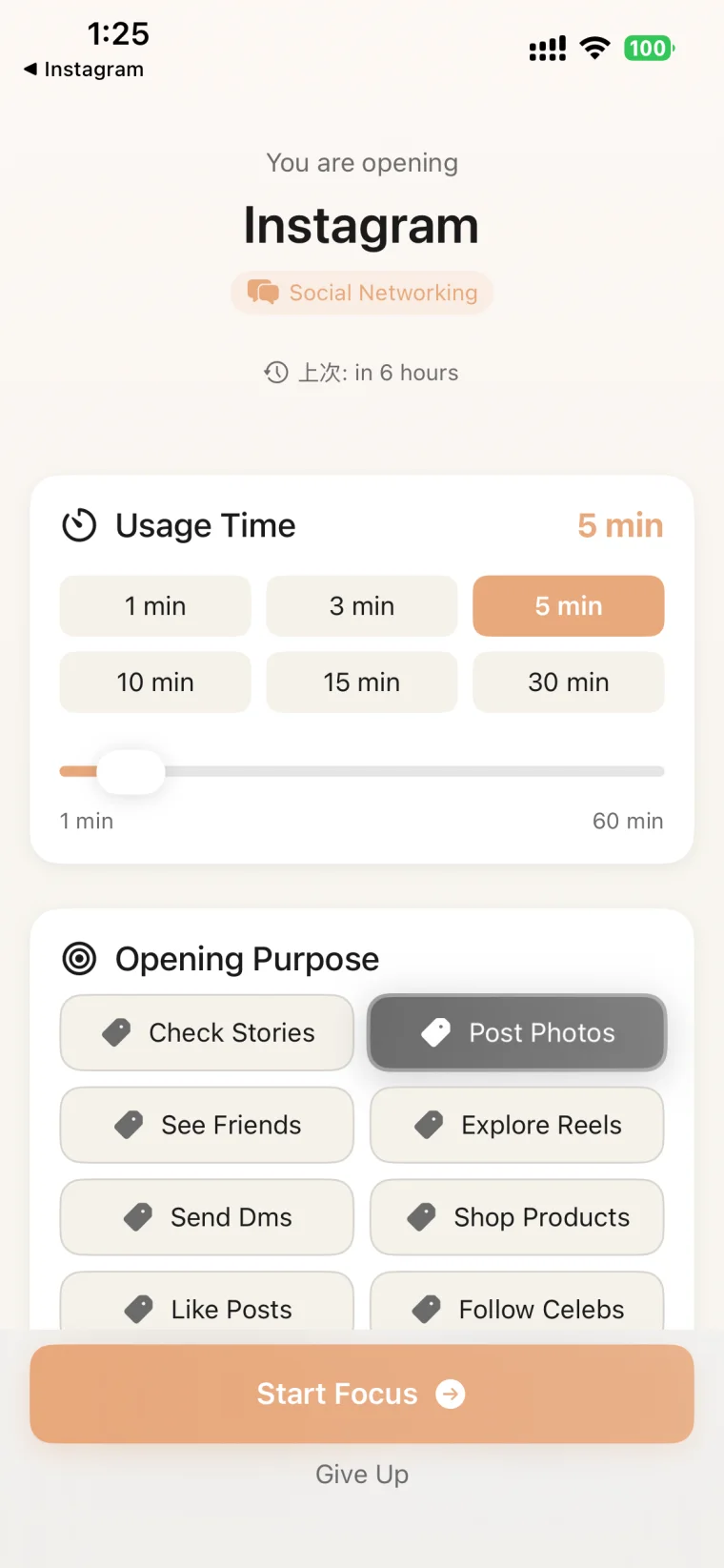
Start a Quick Timer for one focused session. Let recurring schedules protect the distracting hours that return each day or week.
3 targets
Mon · 9:45 AM–11:45 AM
1·2
Mon · 9:45 AM–11:45 AM
1·2
Choose apps or categories, a duration, and weekdays. Apple applies the boundary on schedule.
Uses Apple Screen Time, and permission can be revoked anytime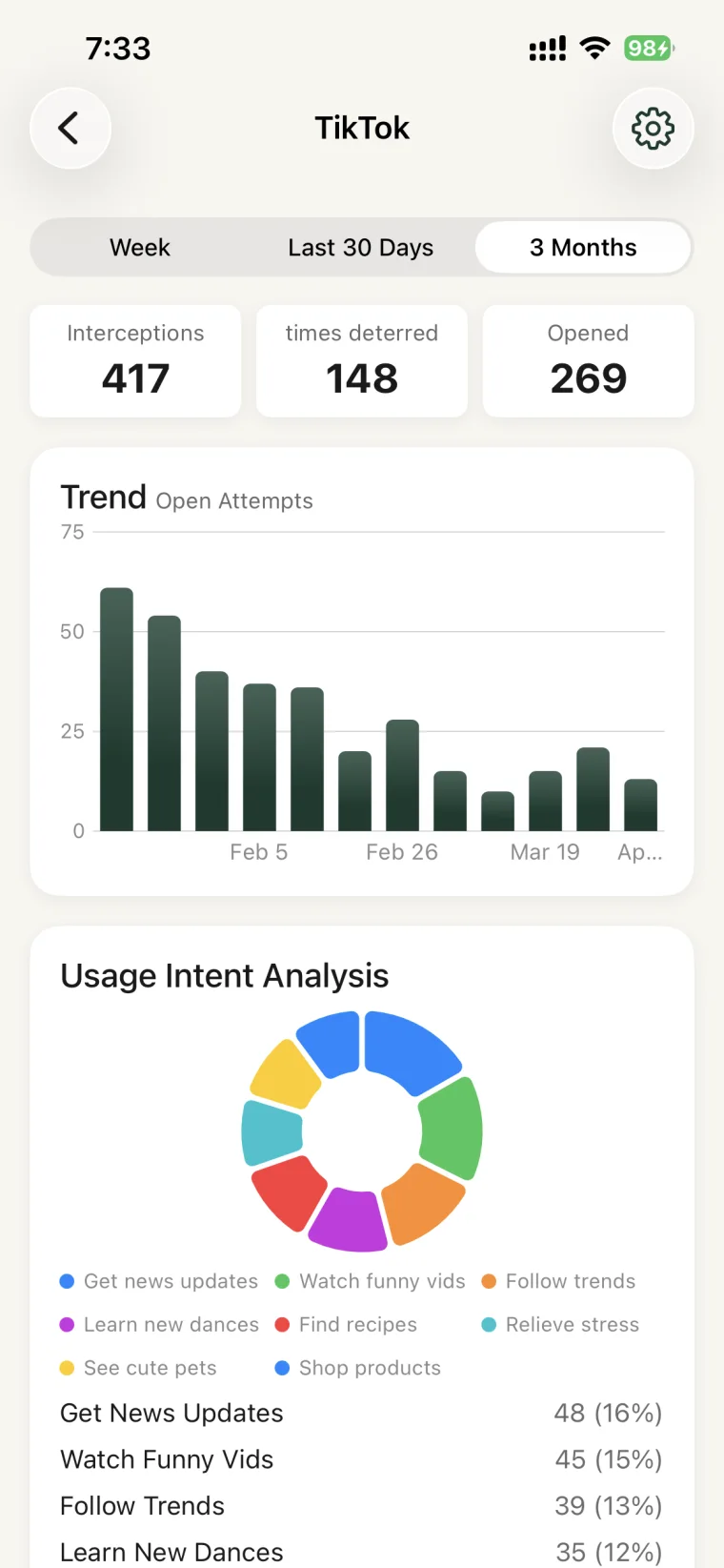
Review shows opening-pause interceptions, turn-backs, and actual opens, plus active blocks that completed, ended early, or were interrupted. Instead of one broad screen-time total, you can see what changed after each choice.
Opening paths · Active-blocking history · Usage intentPause records, schedules, blocking history, and diagnostic logs stay on your device. The developer does not collect or upload personal data; Apple handles purchases.
You create a personal automation in Apple Shortcuts. When a selected app opens, the automation starts the FocusPause pause flow.
Quick Timer blocks selected apps or categories now. Recurring schedules apply on the weekdays and times you choose. Both depend on Apple Screen Time / FamilyControls permission.
No. A running timed block can end early after a second confirmation, and you can revoke system permission or delete the App. Focus Pause does not provide a Strict Mode. Compare an opening pause with a hard app blocker.
The free opening pause protects up to 2 apps with up to 5 purposes each. Quick Timer is free, and the first 2 recurring schedules can each use 1 active weekday.
Start free with two opening-pause apps or one Quick Timer block now.