
When access is still allowed
Choose this if: you want to name the purpose, choose a time, and review what happened.An intentional pause
Best when access is still allowed, but an automatic tap needs a moment of friction.
If you dismiss Screen Time without thinking, choose a boundary that matches what you actually need: pause before an app opens, or block it for a set time or recurring schedule.
iPhone · iOS 18+ · Opening pause and Quick Timer available free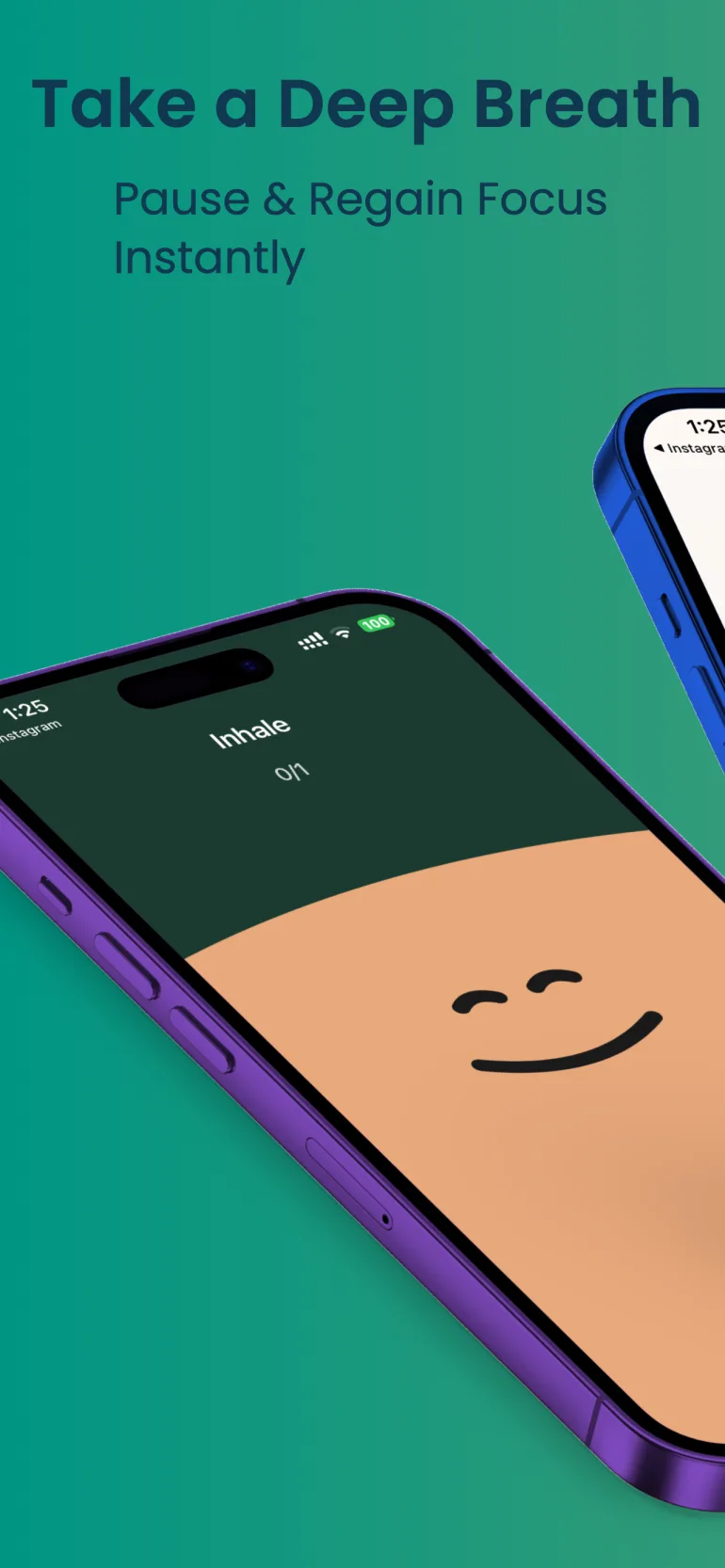
If you tap past Screen Time before you have even made a decision, another reminder may not change the habit. But a strict blocker can still be too much when you need the app for work, messages, maps, or a planned break. The useful question is not “Which blocker is strongest?” It is “Should I still be able to open this app right now?”
Keep access deliberate when the app is still useful. Stop access for a while when it is not.
Best when access is still allowed, but an automatic tap needs a moment of friction.
Best when you want selected apps unavailable for one window or on a recurring schedule, while keeping a confirmed way to end it.
Best when access must stop for a fixed window and you do not want another decision.
A short breathing moment interrupts the automatic sequence.
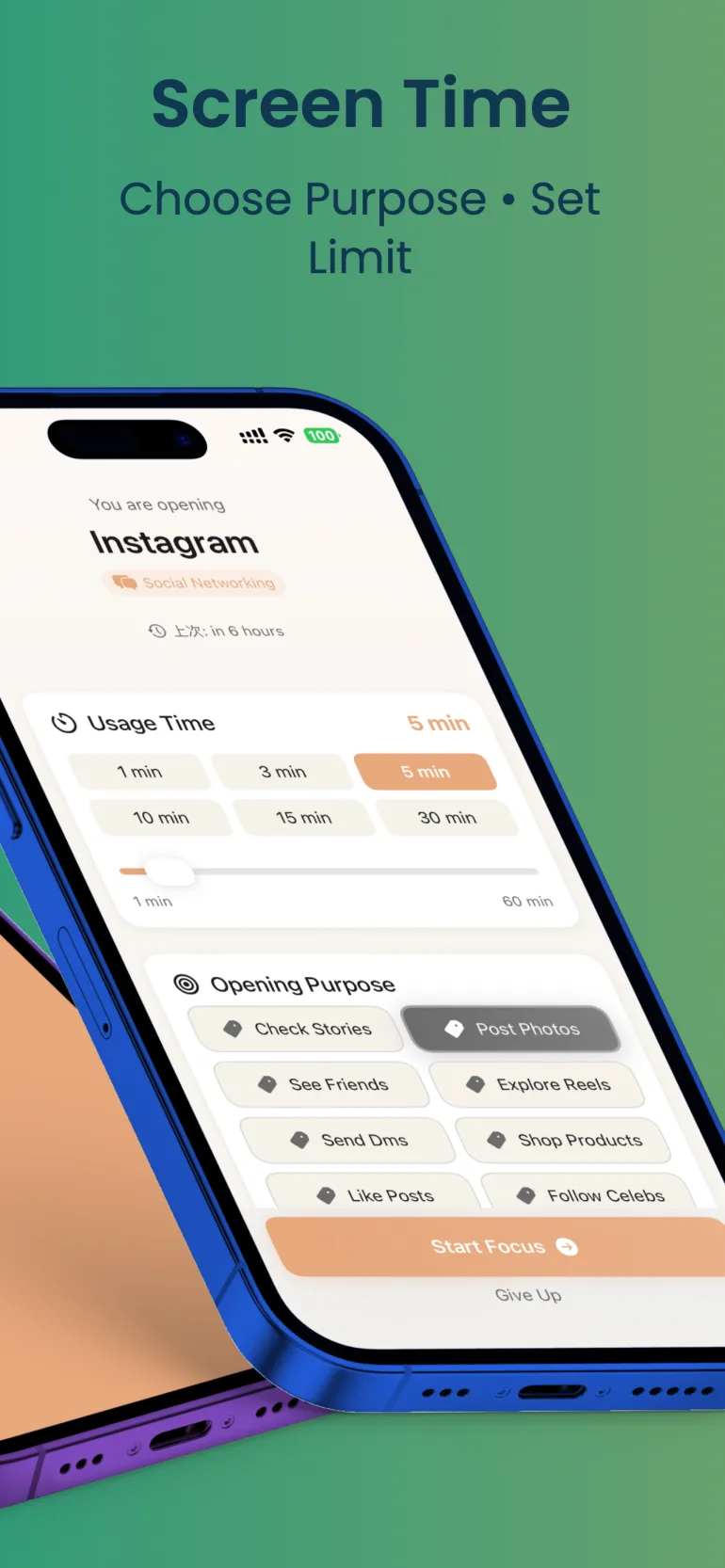
Choose why you are opening the app before you enter it.
Pick how long this specific use should take.
Start Quick Timer now or use a recurring schedule by weekday and time.
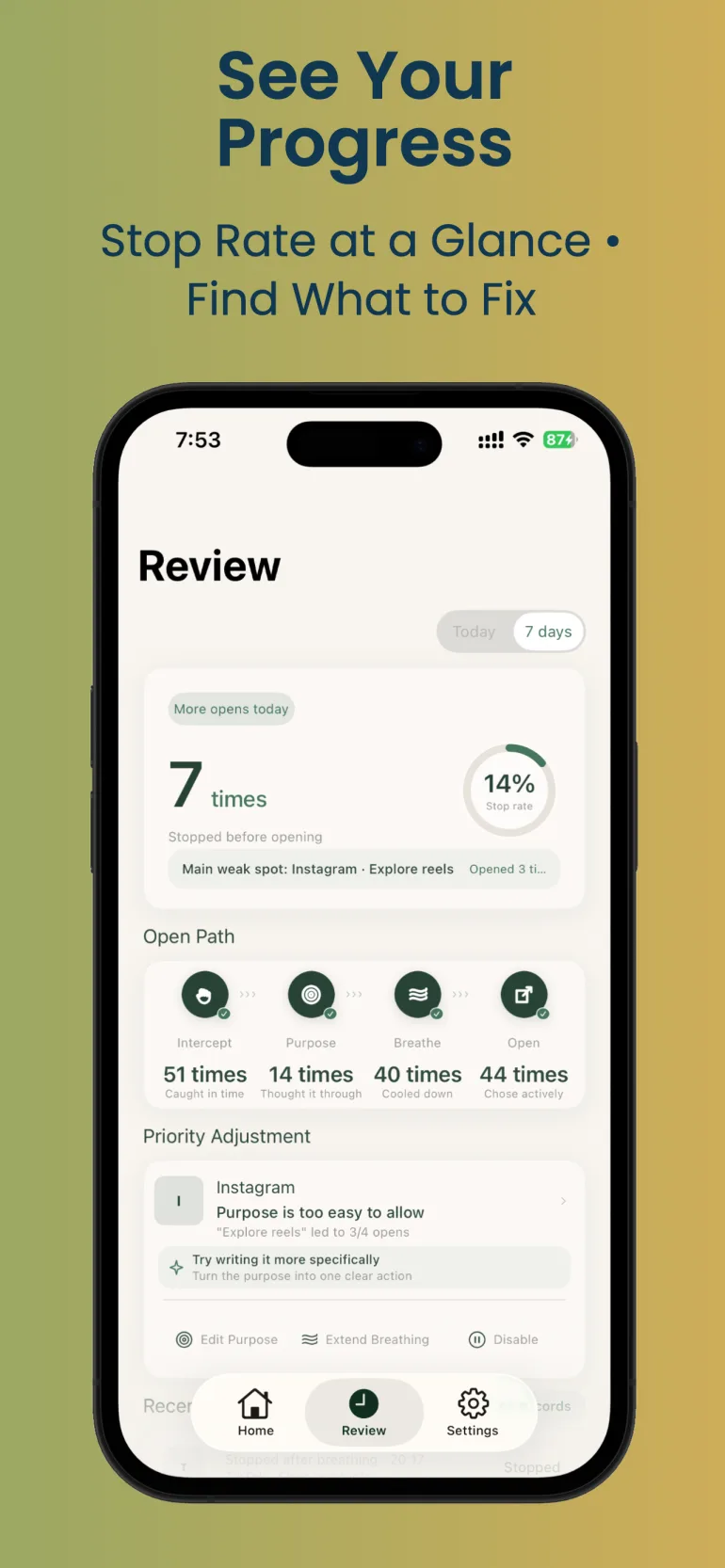
See opening paths and active blocks that completed, ended early, or were interrupted.
Focus Pause is not a permanent or tamper-resistant lock. It does not prevent uninstalling, remove a feed, or stop you from revoking Screen Time permission. A running timed block can end after a second confirmation.
If you need a restriction with no user-controlled exit, use a stricter blocker. Focus Pause is the middle ground: an opening can become deliberate, or access can stop for a chosen duration or schedule, while you keep a confirmed way to end the block.
Choose an app you open automatically but still need to access.
Try Reply to messages or Take a 10-minute break instead of a vague reason.
Use an App Is Opened personal automation so Focus Pause appears at the right moment.
Use Quick Timer when the same app should be unavailable for a chosen window.
Notice which purposes led to a useful session or a decision to turn back.
Focus Pause can add an opening pause when you still need the app, or temporarily block selected apps with Quick Timer and recurring schedules. It is not a Strict Mode: a running block can end after a second confirmation and system permission can be revoked.
No. Focus Pause does not prevent uninstalling the App, revoking Screen Time permission, or ending a timed block after confirmation.
The opening pause does. It uses an App Is Opened personal automation. Quick Timer and recurring schedules use Screen Time / FamilyControls instead.
Focus Pause requires iOS 18 or later.
Yes. The opening pause supports up to two apps with five purposes each. Quick Timer is free, and the first two recurring schedules can each use one active weekday.
Opening pause and Quick Timer are available free. Requires iOS 18 or later.